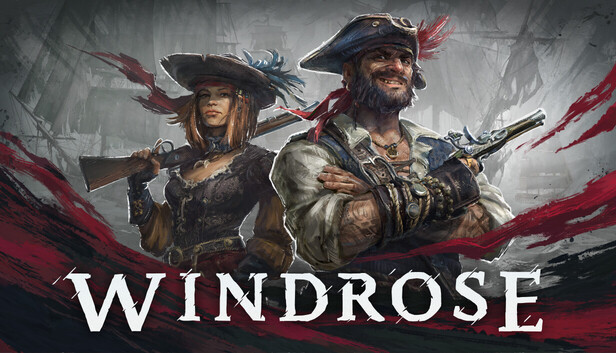
Visit the Windrose page on venomhosting.co.uk and click "Start Trial". No payment details required.
2
Configure Your Server
Enter a server name, choose your server location, and set your Invite Code during checkout. The invite code controls who can join your server — share it with friends you want to play with.
3
Complete Checkout
Confirm your order. Your server is created instantly — no waiting.
4
Access the Game Panel
Access the game panel via the Services page on this website, or through the Game Panel link in the account dropdown menu at the top of the page.
5
Start Your Server
Your server starts automatically after creation. It will be online within 1–2 minutes. You can monitor the status from the game panel.
6
Connect In-Game
Open Windrose → Multiplayer → Join Server → enter your server IP and port → Connect. You will be prompted for the invite code when joining.
7
First Connection
On your first connection the server may take a few minutes to finish its initial setup. This is normal — if you cannot connect straight away, wait 2–3 minutes.
8
⚠️ Important: Set Your World Island ID
After your server has started for the first time, you must set the World Island ID in the game panel. Go to your server's Startup settings and find the "World Island ID" field. In your server's file manager, navigate to Saved → SaveProfiles → Default → RocksDB → 0.10.0 → Worlds — copy the folder name shown there (a long alphanumeric string) and paste it into the World Island ID field, then restart your server. Without this step your world will reset on each restart.
9
Invite Friends
Share your server IP, port, and invite code with friends so they can connect directly.
1
Stop Both Servers
Before touching any files, stop both the source server (the one with your save) and the destination server. Transferring files while a server is running risks a corrupted save.
2
Understand the 3 Files You Need
A Windrose save is made up of exactly three things:
World folder — the RocksDB data folder named after your WorldIslandId. Located at: Saved/SaveProfiles/Default/RocksDB/0.10.0/Worlds/<WorldIslandId>/
ServerDescription.json — server identity file, contains the PersistentServerId that is baked into your save.
WorldDescription.json — world metadata file that ties the world to the server.
3
Locate the Files on the Source Server
Open the source server's file manager in the game panel and navigate to:
Saved/SaveProfiles/Default/RocksDB/0.10.0/Worlds/
You will see a folder with a long alphanumeric name — that is your world folder. Note the folder name; it is your WorldIslandId.
ServerDescription.json
WorldDescription.json
These two JSON files sit in the root of the server files (alongside the game executable folder).
4
Download the 3 Files from the Source Server
Using the game panel file manager:
Download the entire world folder (right-click → Compress to zip, then download the zip).
Download ServerDescription.json.
Download WorldDescription.json.
5
⚠️ The PersistentServerId Gotcha
This is the step that breaks most transfers.
Open ServerDescription.json in a text editor and find the PersistentServerId field — it looks like:
"PersistentServerId": "XXXXXXXX-XXXX-XXXX-XXXX-XXXXXXXXXXXX"
This ID is baked into the world save. When Windrose loads a world it checks that the server's PersistentServerId matches the one the world was created with. If they don't match the world will fail to load.
You must copy ServerDescription.json from the old server. Do not let the new server generate its own — it will produce a different ID and your world won't load.
6
Upload the Files to the Destination Server
In the destination server's file manager:
Navigate to Saved/SaveProfiles/Default/RocksDB/0.10.0/Worlds/. If a world folder already exists there, delete it first.
Upload and extract the world folder zip so the folder sits at the correct path.
Return to the server root and upload ServerDescription.json — overwrite the existing file.
Upload WorldDescription.json — overwrite the existing file.
7
Update the World Island ID Startup Variable
In the game panel, go to your destination server's Startup settings and find the World Island ID field. Set it to the folder name you noted in Step 3 (the long alphanumeric WorldIslandId). Without this, the server will generate a brand new world instead of loading your transferred one.
8
Start the Destination Server
Start the destination server from the game panel. Your transferred world should load. Watch the console for any errors — a successful load will show the server coming online with your world name.
If the server starts but your world is missing or reset, double-check that:
The world folder path is exactly correct.
The PersistentServerId in ServerDescription.json matches the old server's value.
The World Island ID startup variable matches the folder name exactly.
Ready to get started?
Start your free 4-day trial — no payment required.
We use cookies to improve your experience and for advertising purposes (Google Ads). By clicking Accept All, you consent to our use of cookies. You can also choose Essential Only to use the site without advertising cookies.
Privacy Policy